Adobe Illustrator cs5怎么使用外观面板?Adobe Illustrator cs5使用外观面板的方法
时间:2026-03-02 | 作者: | 阅读:0Adobe Illustrator cs5怎么使用外观面板Adobe Illustrator cs5使用外观面板的方法
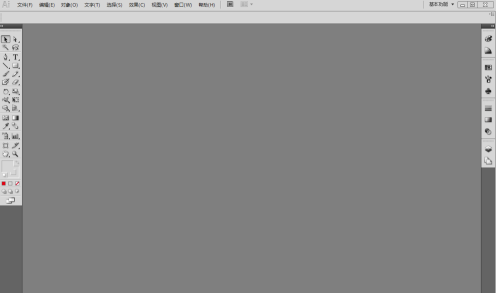
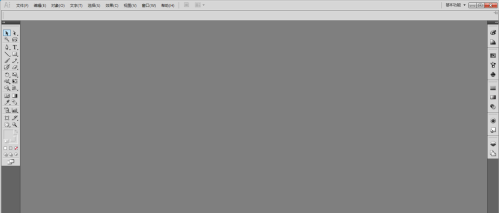
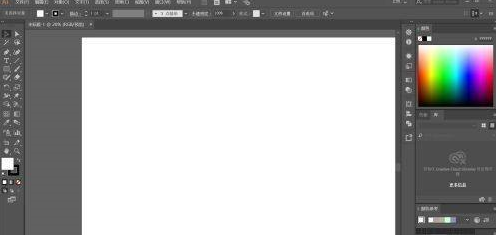
打开Adobe Illustrator CS5。
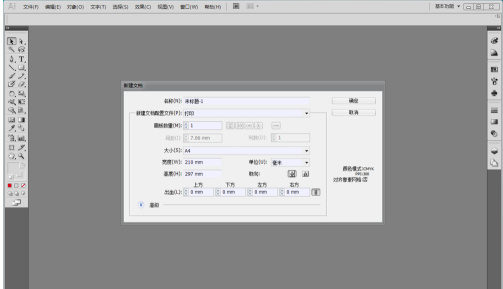
执行【文件】-【新建】命令,新建一个A4大小的文档。
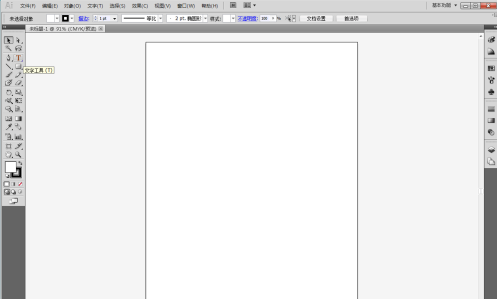
选择【文本工具】。
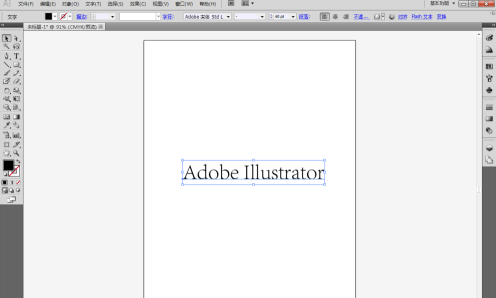
使用文本工具,在画布键入Adobe Illustrator,字符大小设置为60pt。
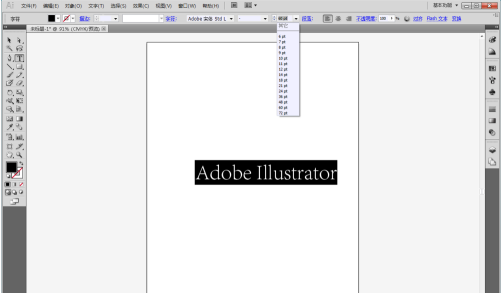
使用【选择工具】选中字符。
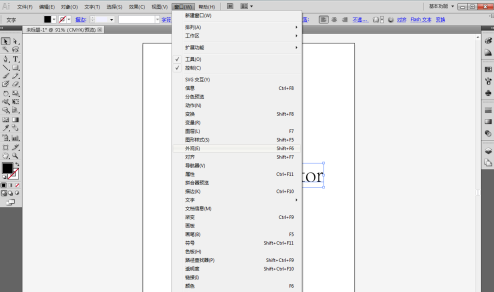
执行【窗口】-【外观】命令,打开外观面板。
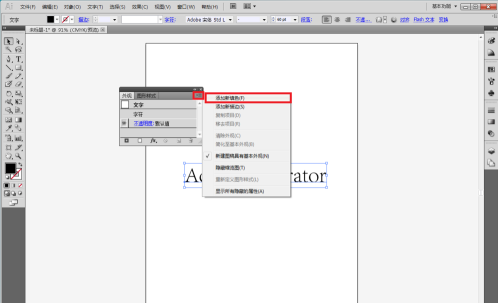
点击外观面板右上角的扩展按钮,选择【添加新填色】命令。
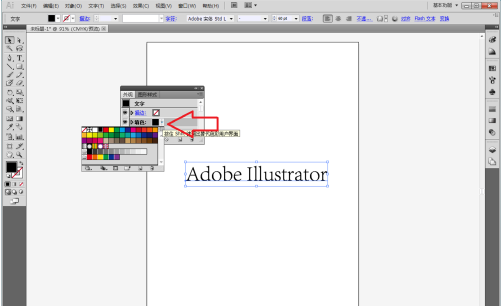
将填色颜色设置为蓝色。
执行【效果】-【转换为形状】-【圆角矩形】命令。
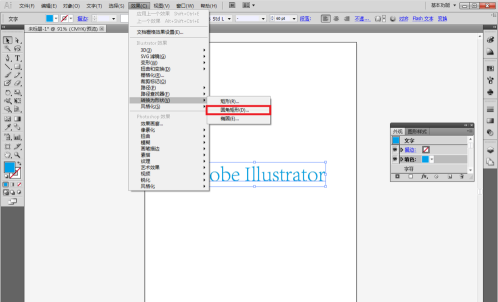
在弹出的对话框中点击“相对”,设置参数后点击确定按钮。
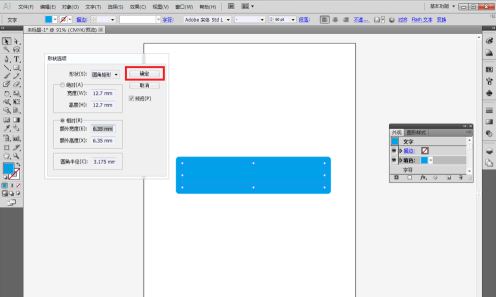
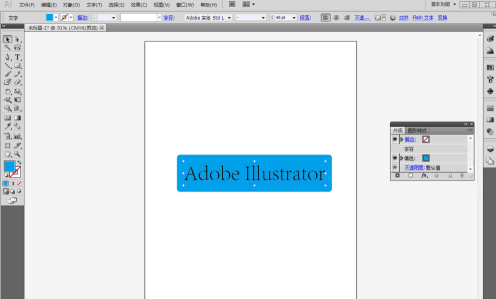
在外观面板中将填色拖拽至字符以下,字符将显示在圆角矩形上面。
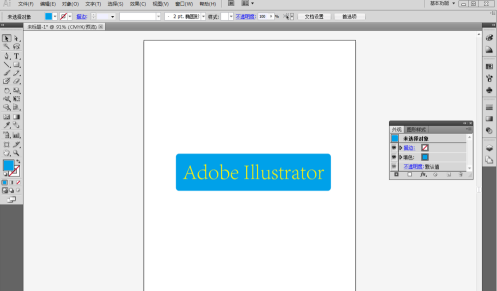
将字符的填充色设置为黄色,大功告成。
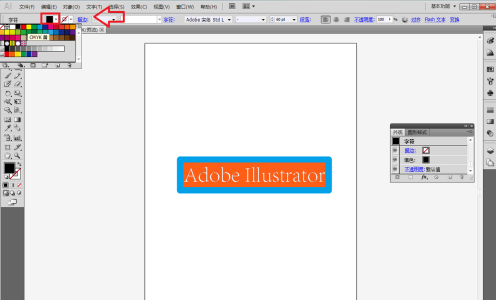
最后展示下最终的效果图。

来源:https://www.downza.cn/xy/177651.html
免责声明:文中图文均来自网络,如有侵权请联系删除,心愿游戏发布此文仅为传递信息,不代表心愿游戏认同其观点或证实其描述。
相关文章
更多-
- Adobe Illustrator CS5怎么使用
- 时间:2026-04-14
-
- Adobe Illustrator cs5怎样抠图?Adobe Illustrator cs5抠图的具体操作
- 时间:2026-02-10
-
-
-
- Adobe Illustrator cs5怎样保存文件?Adobe Illustrator cs5保存文件的方法
- 时间:2026-02-09
-
-
-
精选合集
更多大家都在玩

大家都在看
更多-

- 剪映抖动特效添加教程:轻松制作酷炫视频效果
- 时间:2026-06-11
-

- 剪映视频格式设置教程:MP4与MOV格式导出方法
- 时间:2026-06-11
-

- 鸣潮洛瑟菈幕间介绍
- 时间:2026-06-11
-

- 剪映时间线放大操作步骤详解
- 时间:2026-06-11
-

- 剪映白色背景设置教程:轻松制作纯色视频画面
- 时间:2026-06-11
-
- 千元机倒退至6GB内存!网友吐槽梦回十年前
- 时间:2026-06-11
-

- 剪映视频变速设置教程 常规速度调整方法详解
- 时间:2026-06-11
-

- 剪映胶片连拍效果制作教程
- 时间:2026-06-11