utorrent怎么设置缓存文件目录?utorrent设置缓存文件目录方法
时间:2026-02-28 | 作者: | 阅读:0utorrent怎么设置缓存文件目录utorrent设置缓存文件目录方法
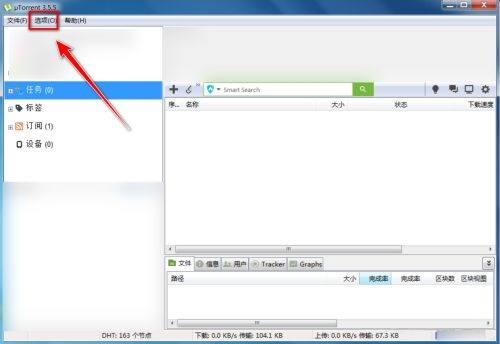
第一步:打开utorrent,点击菜单栏上的“选项”。
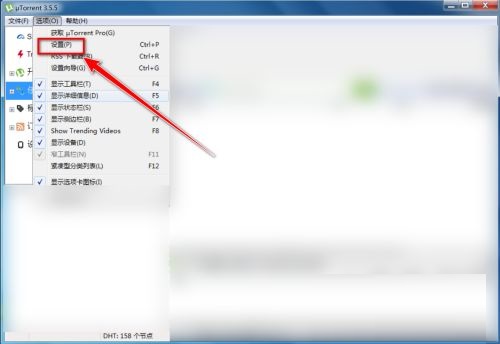
第二步:在选项菜单中,点击“设置”。
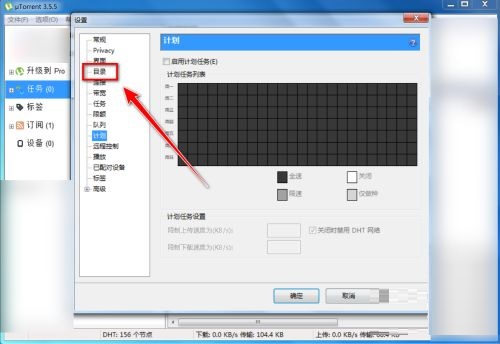
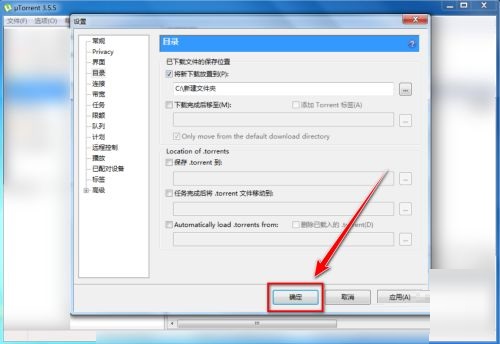
第三步:在设置菜单中,点击“目录”。
第四步:在“目录”菜单中,勾选“将新下载放置到”。

第五步:点击右侧的“...”按钮。
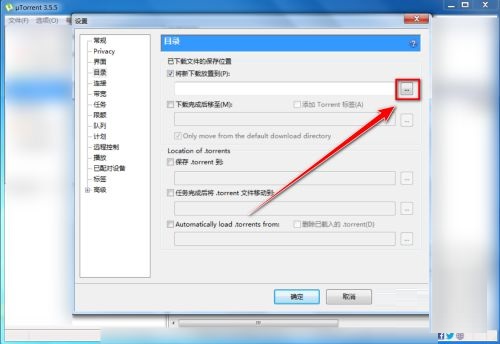
第六步:选择一个文件夹作为缓存文件目录,点击“选择文件夹”。

第七步:返回设置窗口,点击“确定”。
谢谢大家的观看,更多精彩教程请关注心愿游戏!

来源:https://www.downza.cn/xy/164766.html
免责声明:文中图文均来自网络,如有侵权请联系删除,心愿游戏发布此文仅为传递信息,不代表心愿游戏认同其观点或证实其描述。
相关文章
更多-

- 新飞冰箱不制冷是否因温控器故障引发
- 时间:2026-05-31
-

- 如何挑选性价比最高的家用除湿机
- 时间:2026-05-31
-

- 老板集成灶排烟方式是否靠公共烟道
- 时间:2026-05-31
-

- 内存属于易失性存储类型吗
- 时间:2026-05-31
-

- iPhone16pro隐藏功能官方说明
- 时间:2026-05-31
-

- 笔记本独立显卡切换设置方法
- 时间:2026-05-31
-

- 海尔燃气热水器最高温度设置多少度
- 时间:2026-05-31
-

- 博世洗衣机重置后是否还需要重新设置程序
- 时间:2026-05-31
精选合集
更多大家都在玩




大家都在看
更多-

- 诺基亚105手机卡顿反应慢的解决方法
- 时间:2026-05-31
-

- 三星Note 8手机卡顿反应慢解决方法
- 时间:2026-05-31
-

- 安卓手机卡顿解决方法 360手机N5全网通提速指南
- 时间:2026-05-31
-

- 魅蓝5s手机卡顿反应慢解决方法全网通安卓系统优化
- 时间:2026-05-31
-

- 三星Note9无限重启解决方法与忘记密码刷机教程
- 时间:2026-05-31
-

- 一加8T手机无限重启与忘记密码刷机解决方法
- 时间:2026-05-31
-

- vivo Y3忘记锁屏密码怎么办?4步教你快速解锁手机
- 时间:2026-05-31
-

- 荣耀20青春版忘记密码解锁方法详解
- 时间:2026-05-31