adobe reader xi怎么删除其中一页 adobe reader xi删除其中一页的方法
时间:2026-02-24 | 作者: | 阅读:0adobe reader xi怎么删除其中一页 adobe reader xi删除其中一页的方法

1、从网上下载Adobe Acrobat XI Pro这个软件,安装到自已电脑上,安装完后打开软件
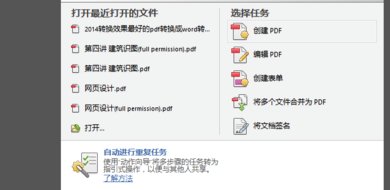
2、准备好我们要删除某一页的或几页的pdf文件,用Adobe Acrobat打开
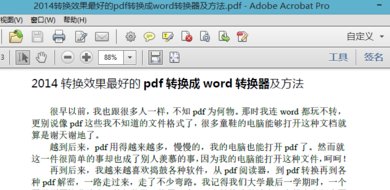
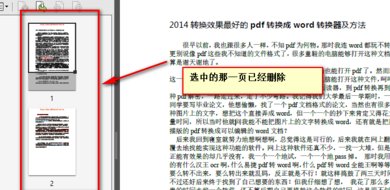
3、打开后点击左上角的页面缩略图
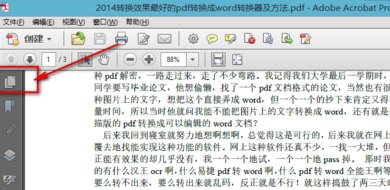
4、选择我们要删除的那一页或几页
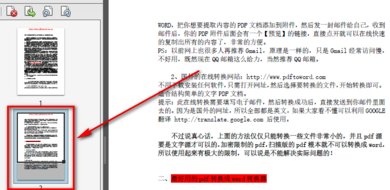
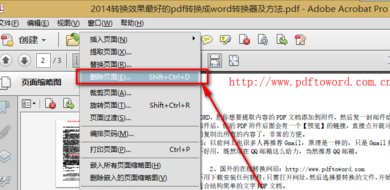
5、单击右键,选择“删除页面”
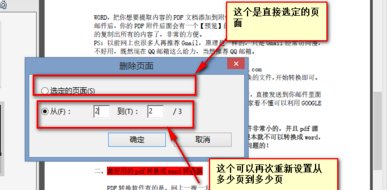
6、设置好我们要删除的页面
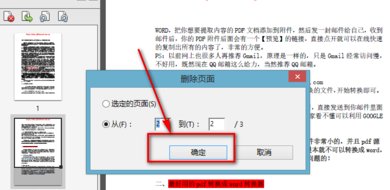
7、设置好以后单击确定
8、选择“是”
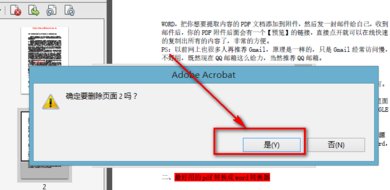
9、到这里为止,我们选定的页面就被删除了

来源:https://www.downza.cn/xy/122304.html
免责声明:文中图文均来自网络,如有侵权请联系删除,心愿游戏发布此文仅为传递信息,不代表心愿游戏认同其观点或证实其描述。
相关文章
更多-
- Premiere制作放大转场动画的详细步骤教程
- 时间:2026-05-20
-
- PR2019黑白效果制作教程
- 时间:2026-05-20
-
- Adobe Illustrator绘制月牙图形的详细步骤教程
- 时间:2026-05-19
-
- Premiere视频旋转教程 如何自由调整视频角度
- 时间:2026-05-18
-
- Premiere双声轨音频音量如何单独调节详细教程
- 时间:2026-05-18
-
- PR分辨率设置教程 详细步骤图文详解
- 时间:2026-05-18
-
- Premiere制作直线动画详细教程 手把手教你绘制动态直线
- 时间:2026-05-18
-
- Premiere如何制作BGM尾部垮掉效果详细步骤教程
- 时间:2026-05-18
精选合集
更多大家都在玩




大家都在看
更多-

- OPPO R9S刷机救砖全攻略线刷视频教学一步到位
- 时间:2026-05-20
-
- 街未觉醒发布渡渡鸟B860M-隐主板 采用磁吸隐藏式侧插设计并获红点奖。
- 时间:2026-05-20
-

- OPPO A37m刷机救砖教程 线刷步骤详解与视频教学
- 时间:2026-05-20
-

- 三星A9100刷机救砖教程线刷步骤详解附视频教学
- 时间:2026-05-20
-

- 酷派Y75手机线刷救砖教程 最新版本刷机步骤视频教学
- 时间:2026-05-20
-

- 红米1S刷机救砖教程 线刷步骤详解与视频教学
- 时间:2026-05-20
-

- 小米2S电信版刷机救砖教程:线刷步骤详解与视频教学
- 时间:2026-05-20
-

- 刷机解压图文教程:手把手教你轻松操作
- 时间:2026-05-20