新版edge浏览器怎么批注pdf 新版edge浏览器批注pdf教程
时间:2026-02-23 | 作者: | 阅读:0新版edge浏览器怎么批注pdf 新版edge浏览器批注pdf教程

1、首先我们需要打开自己需要标注的pdf文档,然后我们需要选择打开方式,再然后就是选择使用edge浏览器进行打开;

2、使用edge浏览器打开之后,我们需要点击右上角的【添加备注】功能,即可打开浏览器自带的标注功能;

3、在edge的备注功能选项中会有一栏工具箱,分别是圆珠笔、荧光笔、橡皮擦等等功能图标;

4、然后我们需要点击我们想要的笔之后,会出现我们选择笔的颜色和粗细的不同的多种选择;
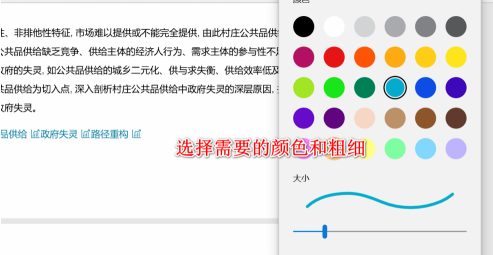
5、选择好我们想要的颜色和粗细以后,我们可以直接在pdf的界面中进行批注和操作,就像是在纸上简单的使用笔进行写字一样,批注添加好之后点击保存即可完成批注的操作。


来源:https://www.downza.cn/xy/112652.html
免责声明:文中图文均来自网络,如有侵权请联系删除,心愿游戏发布此文仅为传递信息,不代表心愿游戏认同其观点或证实其描述。
相关文章
更多-

- Microsoft Edge浏览器隐私声明查看方法详解
- 时间:2026-06-15
-
- Microsoft Edge浏览器外观自定义设置与美化教程
- 时间:2026-06-15
-

- Microsoft Edge浏览器缩放比例调整设置教程
- 时间:2026-06-15
-

- Microsoft Edge浏览器自定义字体设置教程
- 时间:2026-06-15
-

- Microsoft Edge浏览器收藏夹显示与设置教程
- 时间:2026-06-15
-

- Microsoft Edge浏览器主页内容关闭与设置教程
- 时间:2026-06-15
-

- Microsoft Edge浏览器历史记录按钮显示与设置教程
- 时间:2026-06-15
-

- Microsoft Edge浏览器安装扩展插件的详细步骤
- 时间:2026-06-15
精选合集
更多大家都在玩
大家都在看
更多-

- 热门绘图软件排行榜推荐
- 时间:2026-06-16
-

- 真实靠谱的找工作APP推荐
- 时间:2026-06-16
-

- 车辆定位软件推荐 好用的车辆位置追踪App
- 时间:2026-06-16
-

- 影视大全免费看电视剧软件推荐
- 时间:2026-06-16
-

- 已卸载应用找回方法及免费恢复软件推荐
- 时间:2026-06-16
-

- 永久免费追剧App推荐,这些软件真正永久免费
- 时间:2026-06-16
-

- 影视大全纯净版免费追剧软件推荐下载合集
- 时间:2026-06-16
-

- 好用的无广告追剧软件推荐 有哪些值得下载
- 时间:2026-06-16