cool edit pro去噪音的详细操作步骤
时间:2026-02-23 | 作者: | 阅读:0cool edit pro去噪音的详细操作步骤

1、安装好cool edit pro后,打开该软件,进入其界面;

2、点文件,选择打开命令;
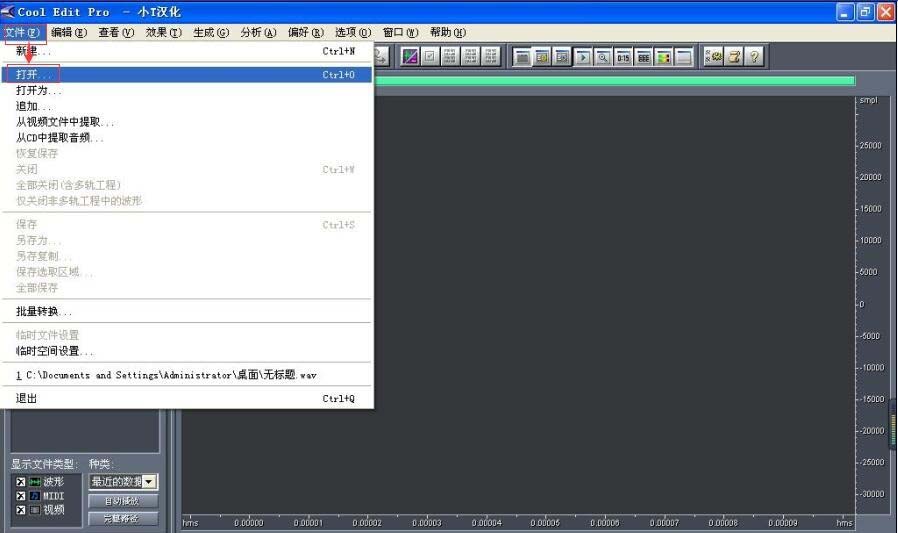
3、找到需要去噪处理的音乐,选中它,然后点“打开”;

4、音频文件就导入到cool edit pro里了;

5、在效果菜单找到噪音消除,点“嘶声消除”;

6、点确定;

7、开始消除噪声;

8、根据需要,再在效果中选取其它命令,如“降噪器”,继续进行噪声处理,直到满意为止。

上面就是cool edit pro去噪音的详细操作步骤,小伙伴们都学会了吗

来源:https://www.downza.cn/xy/101344.html
免责声明:文中图文均来自网络,如有侵权请联系删除,心愿游戏发布此文仅为传递信息,不代表心愿游戏认同其观点或证实其描述。
相关文章
更多-
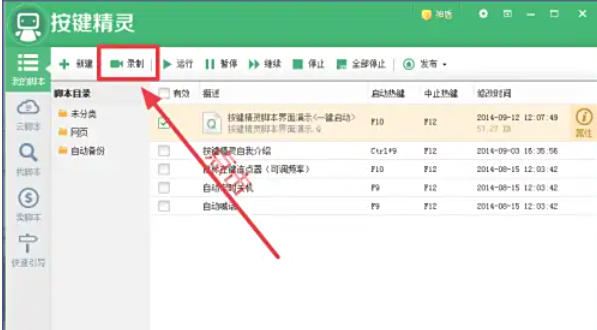
- 按键精灵怎么录制
- 时间:2026-02-25
-

- 按键精灵怎么制作鼠标连点
- 时间:2026-02-25
-
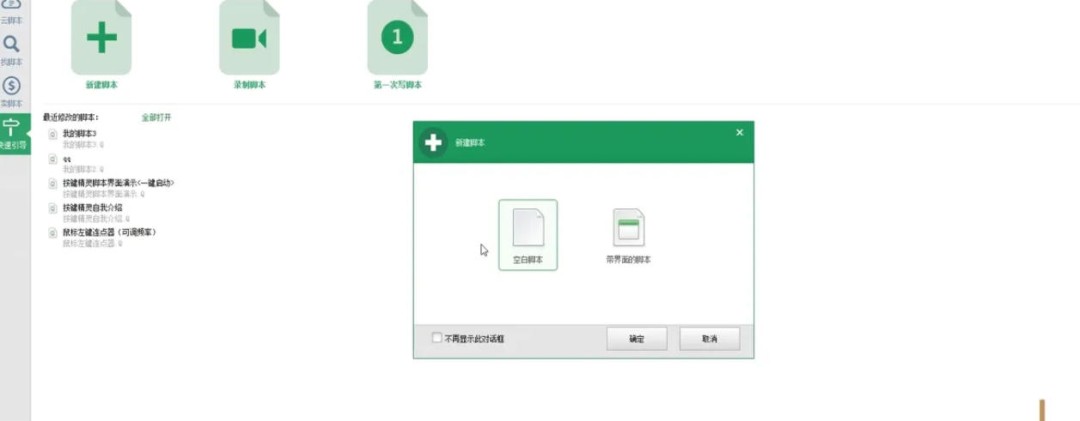
- 按键精灵怎么找屏幕坐标
- 时间:2026-02-25
-

- qq游戏怎么开启游戏邀请通知
- 时间:2026-02-24
-

- qq游戏怎么设置老板键
- 时间:2026-02-24
-

- qq游戏怎么在qq界面添加qq游戏
- 时间:2026-02-24
-

- ie9怎么关闭SmartScreen筛选器
- 时间:2026-02-24
-

- ie9怎么打开刚刚关闭的网页
- 时间:2026-02-24
精选合集
更多大家都在玩










大家都在看
更多-

- 雄心之上骁骑玩法攻略
- 时间:2026-02-24
-
- 三年又三年是什么意思?出自哪里?是什么意思
- 时间:2026-02-24
-
- 羊蹄山之魂武者眼罩怎么获取
- 时间:2026-02-24
-

- 无限轮回最新通用兑换码福利合集
- 时间:2026-02-24
-

- 在世界消失前拨通最后一通电话 叙事新作《薛定谔的电话》亮相 Steam 新品节
- 时间:2026-02-24
-

- 学粤语零基础自学app免费
- 时间:2026-02-24
-

- 专门看泰剧最全的软件有哪些
- 时间:2026-02-24
-

- 霓虹人生战斗模式攻略大全
- 时间:2026-02-24