qBittorrent怎么安装
时间:2026-10-15 | 作者:云端旅人 | 阅读:0可能很多的伙伴还不明白qBittorrent怎么安装,下面由心愿游戏的小编为你介绍一下吧,一起来看看吧。
qBittorrent怎么安装
第1步:到qBittorrent官网,下载对应系统的安装包
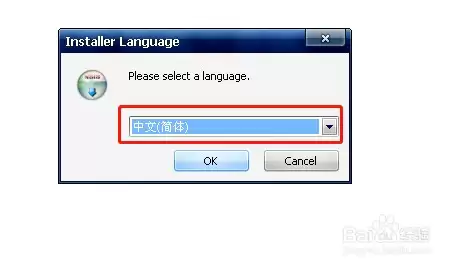
第2步:双击下载好的安装程序,先选择界面语言
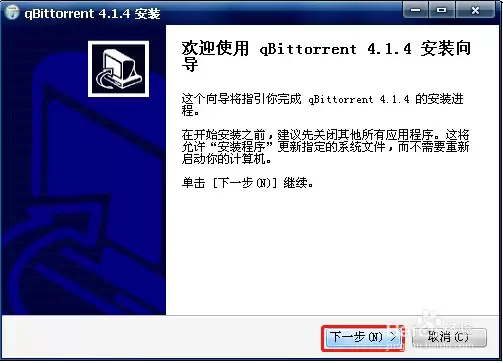
第3步:点"下一步",阅读并接受许可协议
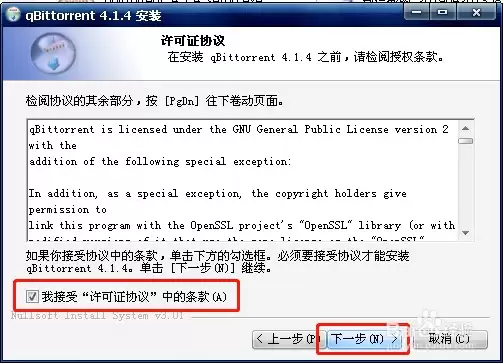
第4步:选择安装位置,也可以保持默认不动
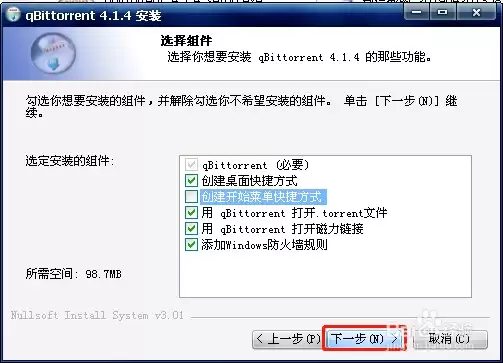
第5步:勾选开始菜单文件夹,继续点"下一步"
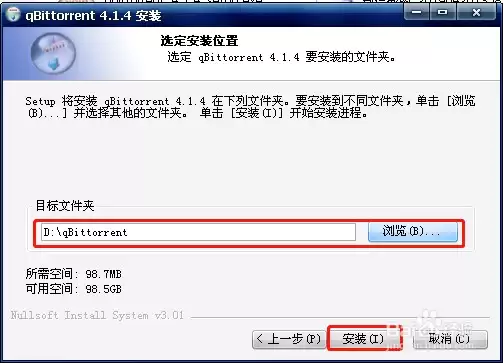
第6步:确认配置无误后点"安装"
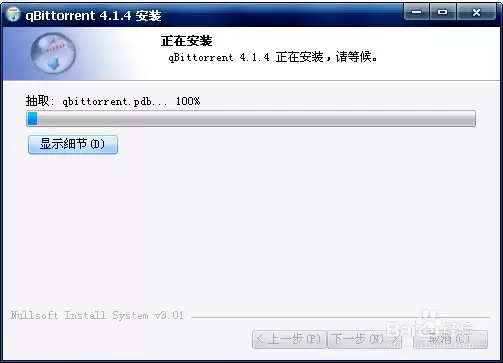
第7步:等待程序把文件复制完成
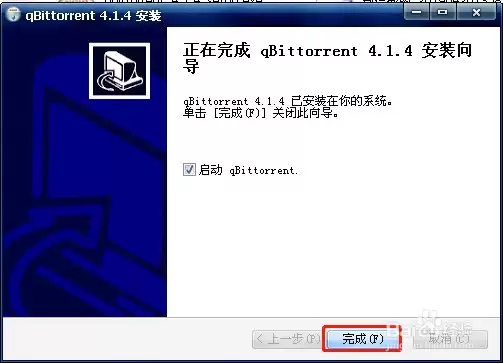
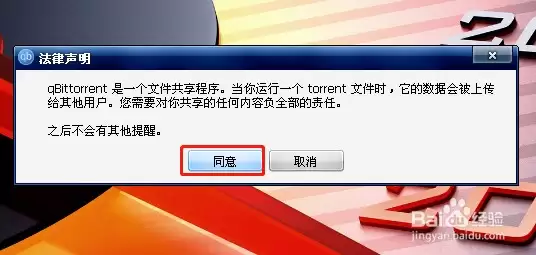
第8步:点"完成",软件就会自动启动起来
结语:以上就是心愿游戏的小编为您带来的qBittorrent怎么安装,希望能帮到大家,更多相关的文章请关注本站。

免责声明:文中图文均来自网络,如有侵权请联系删除,心愿游戏发布此文仅为传递信息,不代表心愿游戏认同其观点或证实其描述。
相关文章
更多-
- PS怎么用魔棒抠图
- 时间:2026-10-21
-
- OBS Studio怎么设置音频输入源
- 时间:2026-10-21
-
- 讯飞输入法电脑版怎么语音输入
- 时间:2026-10-21
-
- Snagit怎么滚动截取长图
- 时间:2026-10-21
-
- 电脑怎么设置开机密码
- 时间:2026-10-21
-
- Excel怎么在单元格内换行
- 时间:2026-10-21
-
- Windows怎么录制屏幕
- 时间:2026-10-21
-
- 电脑怎么清理C盘空间
- 时间:2026-10-21
精选合集
更多大家都在玩
大家都在看
更多-
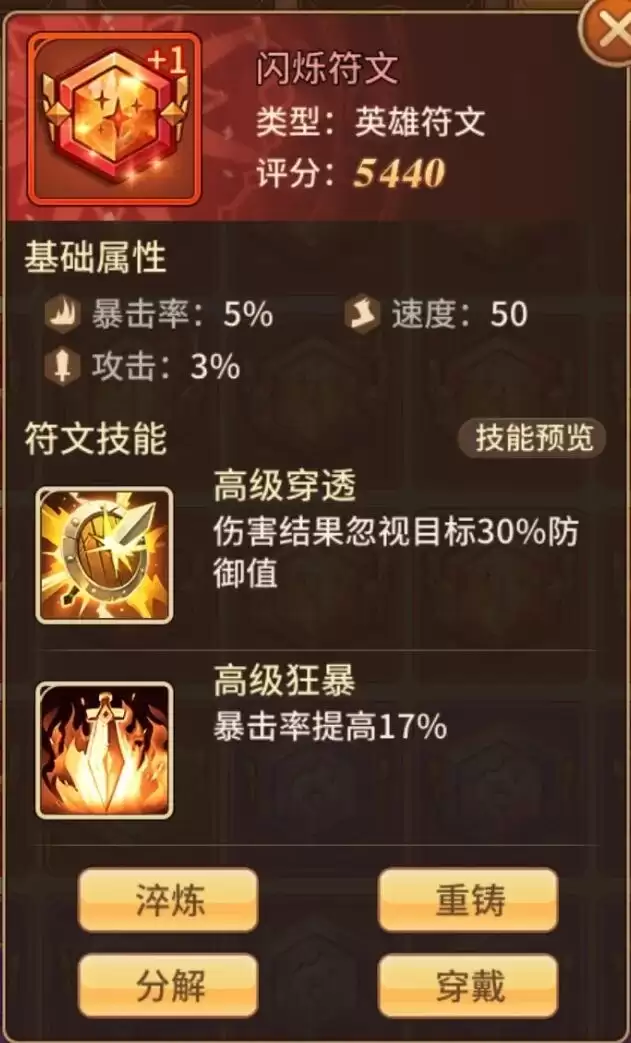
- 闪烁之光法师及坦克符文推荐
- 时间:2026-10-21
-

- 闪烁之光三灵系玩法解析
- 时间:2026-10-21
-
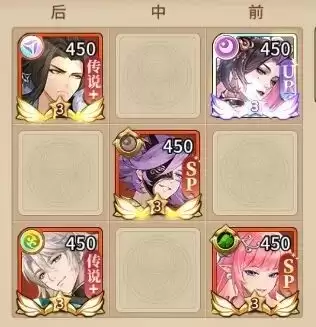
- 闪烁之光高速爆发流攻略
- 时间:2026-10-21
-

- 闪烁之光食魇天马和金羽鸾适配场景
- 时间:2026-10-21
-

- 闪烁之光永恒纪元钟效果解析
- 时间:2026-10-21
-

- 闪烁之光神装选择思路
- 时间:2026-10-21
-
- PS怎么用魔棒抠图
- 时间:2026-10-21
-
- OBS Studio怎么设置音频输入源
- 时间:2026-10-21